Water Eject for Android | Android DropShift Speaker Sound
Android Speaker Water Removal

Water Eject for Android

Got water in your Android speaker? Use the Android water eject sound below to help clear trapped drops and improve the sound. Keep your phone unplugged and point the speaker downward before you begin.

Android DropShift

Ready

Choose a sound mode and keep your phone’s speaker pointed downward.

Before You Start
Bluetooth Off
Phone Unplugged
Case Removed
Speaker Down
Sonic Ejection Wave Android Tuned

125Hz

Auto DropShift

24s Cycle
Status: Cycle complete. Play a video or ringtone and check your speaker.
60%

Start near 60% phone volume. Increase it slowly only if the tone is too quiet.

Safety Note: Use this tool only when your phone is working normally and the speaker sounds wet. It cannot dry the charging port or repair internal water damage.
How to Use Android Water Eject

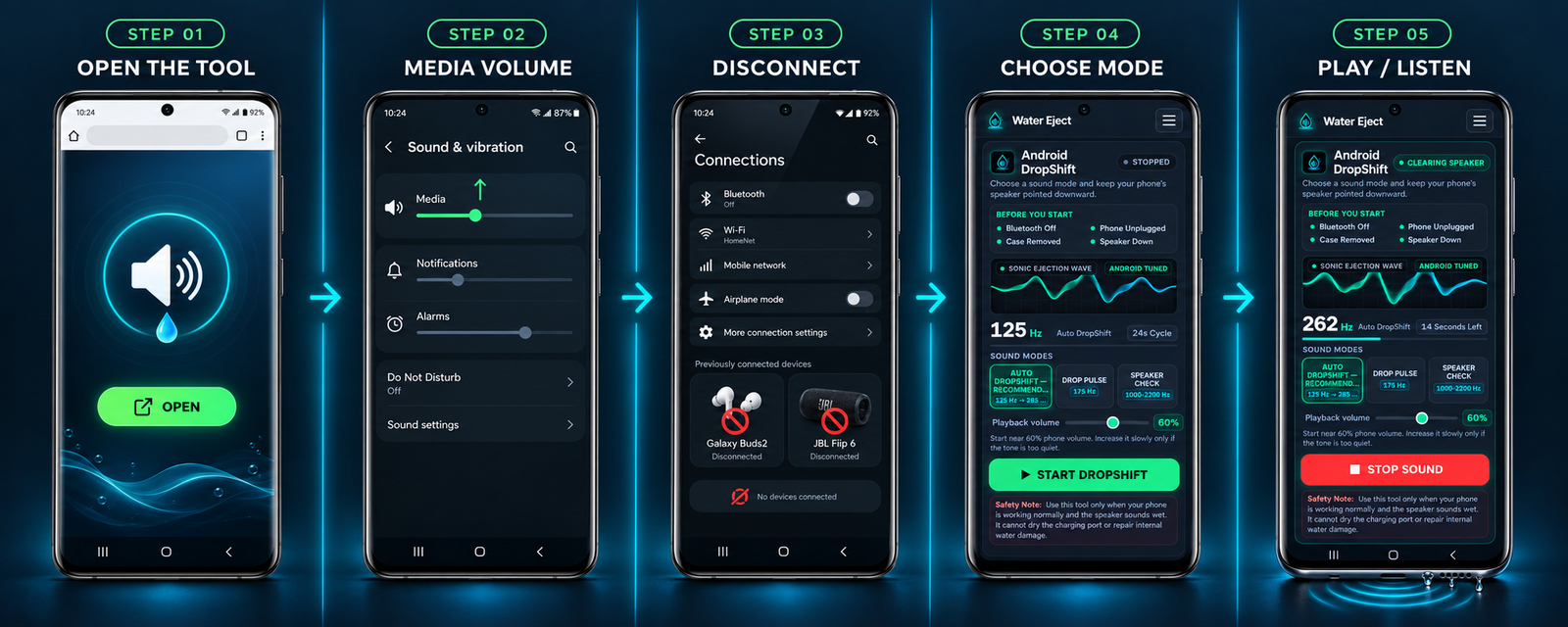
Follow these steps to use the tool on your Android phone.

01

Step 1: Open the Tool

Open this page in your phone’s browser and find the sound tool.

02

Step 2: Check Your Media Volume

Check the volume marked “Media.” Ringtone volume is a separate setting. Start low and turn it up slowly until you can hear the sound clearly.

03

Step 3: Disconnect Earbuds and Bluetooth Speakers

Unplug headphones and disconnect any wireless earbuds or speakers. Use your phone’s speaker for the sound.

04

Step 4: Choose a Mode and Press Play

Choose a sound mode, then tap play. Keep your fingers away from the speaker holes and hold the phone away from your ears. Tap stop whenever you want to end the sound.

05

Step 5: Listen to Your Speaker

When the sound stops, play a song or video you know well. Does it sound normal? If the audio is still muffled, stop using the tool and give your phone more time to dry.

Water Eject Android 5-step visual guide showing full-size mobile screens for Open Tool, Media Volume, Disconnect, Choose Mode, and Play/Listen.

Android Water Eject Sound Modes Explained

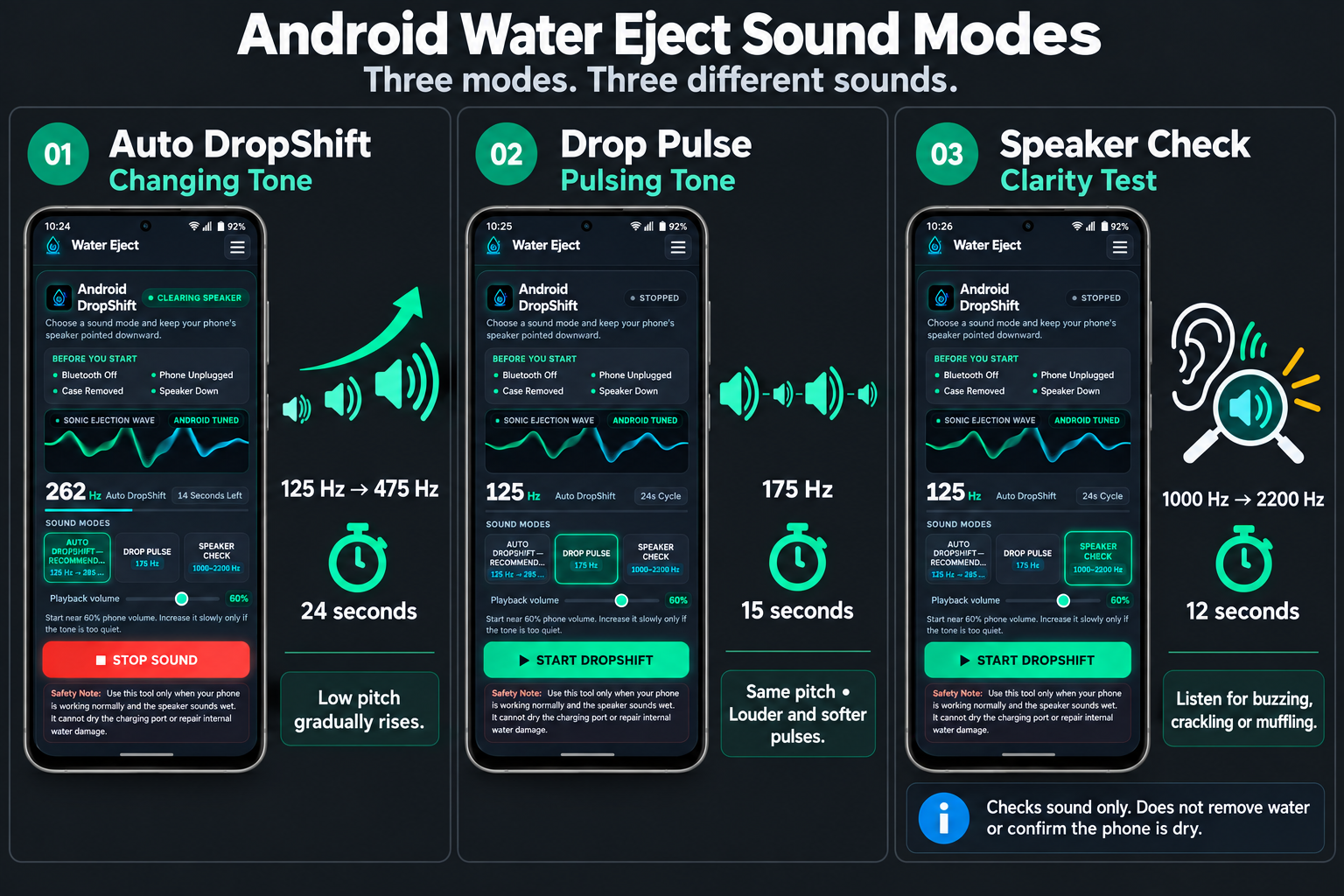
Choose from three modes in the Android water eject tool: Auto DropShift, Drop Pulse, and Speaker Check. Here’s what each one plays.

01

Auto DropShift: Changing Tone

Auto DropShift starts at 125 Hz and rises toward 475 Hz during a 24-second cycle. You’ll hear a low tone that gets higher as it plays.

02

Drop Pulse: Pulsing Tone

Drop Pulse uses a 175 Hz tone in a 15-second cycle. The pitch stays the same, but the sound switches between louder and softer pulses.

03

Speaker Check: Clarity Test

Speaker Check runs from 1000 Hz to 2200 Hz during a 12-second cycle. Listen for buzzing, crackling, or muffled sound.

Use this mode to check how your Android speaker sounds. It does not remove water or tell you whether the phone is dry.

Android water eject sound modes illustrated on three phones, showing Auto DropShift’s rising pitch, Drop Pulse’s pulsing tone, and Speaker Check’s clarity test.

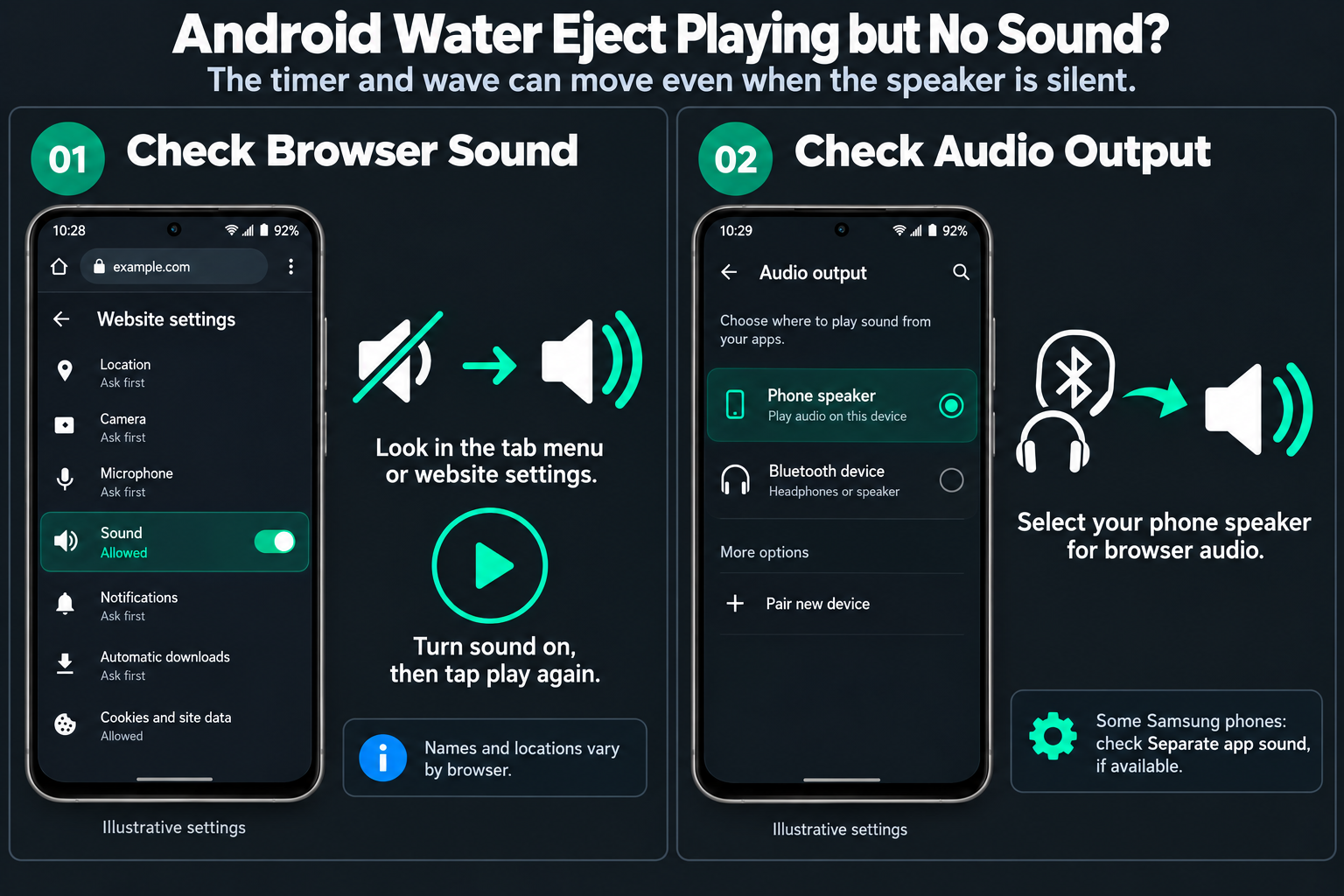
Android Water Eject Playing but No Sound?

If the timer is running but you hear nothing, check your browser’s sound settings. The wave can move even when no sound comes from your speaker.

01

Check Whether the Browser Tab Is Muted

Look for a sound option in your browser’s tab menu or website settings. Its name and location depend on your browser.

If the website is muted, turn its sound on and tap play again.

02

Check App-Specific Audio Output Settings

Your phone may be sending browser audio to another device. Check the audio output settings and select your phone speaker.

Some Samsung phones have a setting called Separate app sound. If this setting is available, select your phone speaker for browser audio.

Android water eject troubleshooting diagram showing how to enable browser sound and select the phone speaker for audio output.

Using an iPhone? Visit our iPhone water eject for instructions.

Frequently Asked Questions

No. Android DropShift runs directly in your phone’s browser. Open the page, choose a sound mode, and tap Start DropShift.

Auto DropShift plays for 24 seconds, while Drop Pulse runs for 15 seconds. The separate Speaker Check mode lasts 12 seconds and helps you listen for unclear audio.

Check your phone’s media volume, disconnect Bluetooth devices and headphones, and make sure the website is not muted. The audio output should be set to your phone’s speaker.

No. This tool plays sound through the speaker. It cannot dry the charging port, confirm that your phone is dry, or repair internal water damage.

Stop using the tool and allow more drying time according to your phone manufacturer’s instructions. A completed sound cycle does not guarantee water removal. If the problem continues, contact a repair service.