Speaker Cleaner & Sound Test | Test Phone and External Speakers
Precision Sound Test & Speaker Check

Speaker Cleaner for Phone and External Speakers

Test your phone speaker, Bluetooth speaker, or wired audio with calibrated tone presets. Choose a sound mode and channel below to listen for distortion, rattling, or muffled response. If water got into your speaker, use our Water Ejector Tool — it is highly effective and helpful for speaker water removal.

Sound Test Console Stereo Web Audio Engine
Ready
Channel Routing
L R

Left and Right require stereo output. Mono speakers or device settings may combine both channels. Testing your phone? Disconnect external audio. Testing an external speaker? Connect it and select it as your audio output.

The tool uses the output selected by the operating system. It cannot detect or switch physical speakers automatically.

Sine Generator Both Channels

165Hz

Low Tone — Continuous Hum 30s Total
Test Duration
35%

Always keep physical device volume low before pressing Play. High volume can damage ears or speaker cones.

Test session complete. Inspect your speaker now. If still muffled, inspect the grille for dust or check audio settings below.
Safe Testing Guidelines
Details

Do not use headphones: These tones are designed for open-air speaker testing only.

If water got into your speaker: Use our Water Ejector Tool — it is specially designed and very helpful for speaker water removal using calibrated acoustic expulsion frequencies.

Sound cannot fix broken hardware: Blown voice coils, torn speaker cones, or damaged amplifier chips require physical repair.
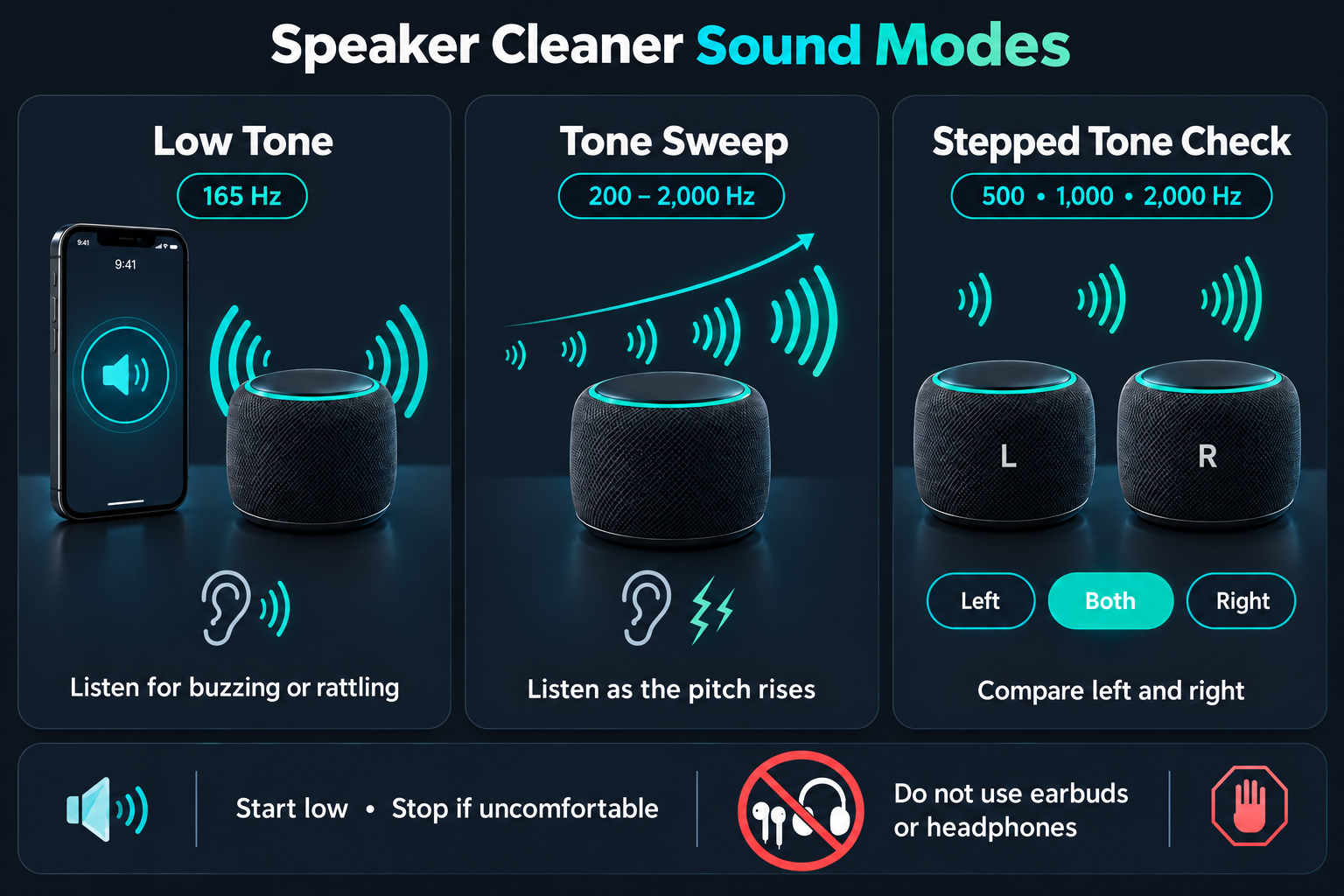
Speaker Cleaner Sound Modes Explained

The speaker cleaner has three sound modes. You can play each through your phone or a connected external speaker. Here's what you'll hear and what to listen for.

165 Hz

Low Tone — 165 Hz

This mode plays a low hum that stays at the same pitch. Listen for any extra buzzing or rattling while it plays. On a small phone speaker, the hum may be quiet. Don't turn the volume right up to make it louder.

200 – 2,000 Hz

Tone Sweep — 200 to 2,000 Hz

The sound starts low and slowly rises in pitch. Listen for any point where it starts crackling or cuts out. Some parts may sound louder than others; that alone does not mean your speaker is damaged.

500 • 1,000 • 2,000 Hz

Stepped Tone Check — 500, 1,000 and 2,000 Hz

This mode plays three tones, one after another, with a short gap between them. Choose Left, then Right, to compare the same tones on a stereo setup. Keep the volume unchanged while you compare. Choose Both to hear the two channels together.

Start each mode at low volume and stop if the sound is uncomfortable. These tones help you listen for differences; they cannot confirm that dust has been removed or a speaker has been repaired.

Speaker cleaner diagram showing Low Tone, Tone Sweep and Stepped Tone Check, with left/right controls and a no-headphones sign.

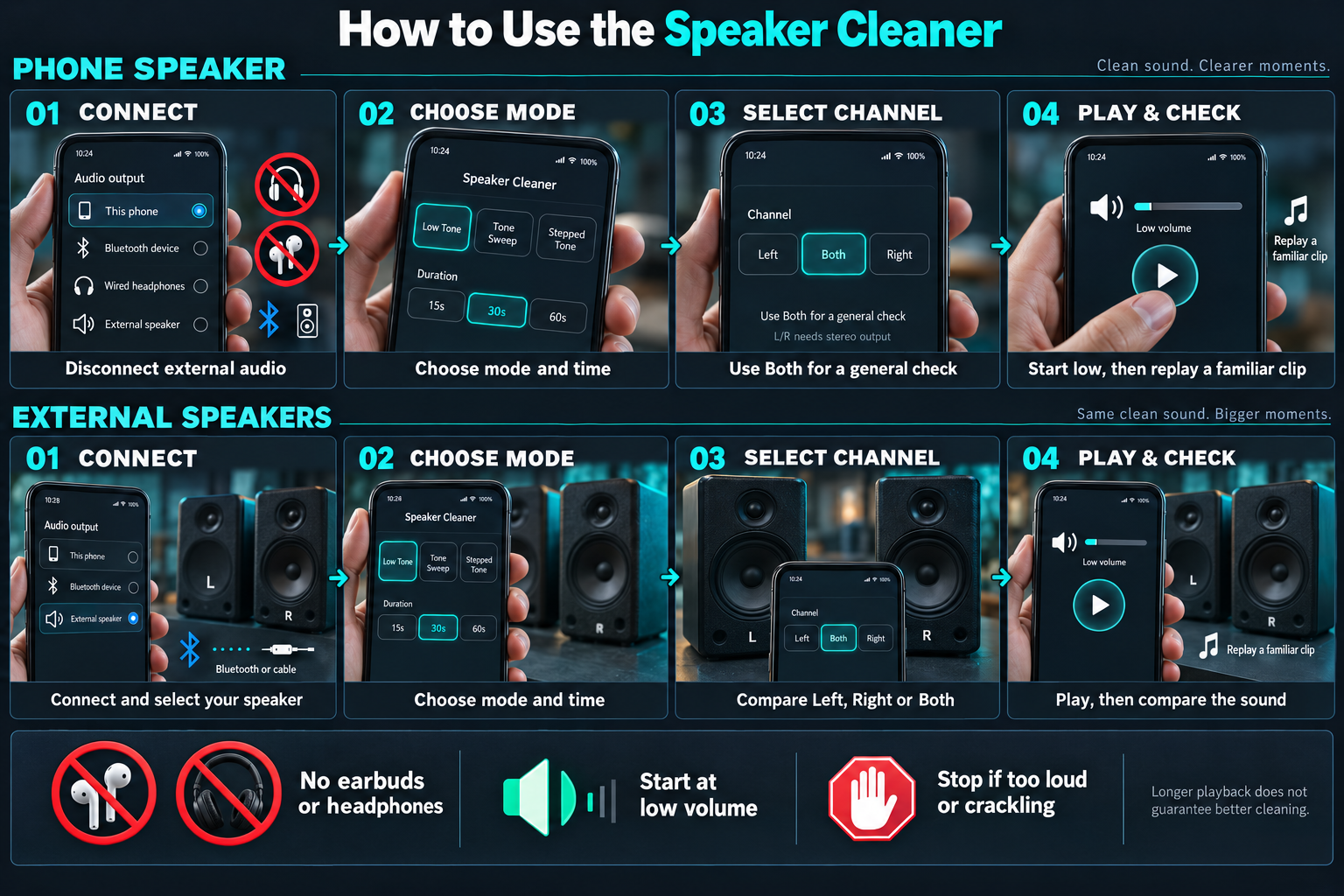
How to Use the Speaker Cleaner

Follow these steps to check a phone speaker, Bluetooth speaker or wired setup.

01

Step 1 – Connect the Speaker You Want to Check

To check your phone's own speaker, disconnect any Bluetooth speaker and unplug audio cables. To check an external speaker, connect it by Bluetooth or cable and make sure sound plays through it.

02

Step 2 – Choose Your Speaker Cleaner Sound

Pick one of the three modes above. For a first check, Low Tone or Tone Sweep works well. For comparing two speakers or channels, choose Stepped Tone Check.

03

Step 3 – Select Left, Right or Both Channels

Choose Left, Right or Both Channels. On a stereo speaker, this tests each side on its own. On a single phone speaker, Left and Right may sound similar if the phone combines channels.

04

Step 4 – Play the Sound and Check Your Speaker

Check that your volume is low, then click Play Sound. Listen for buzzing, rattling or sudden volume drops. Click Stop at any point. When done, play a song or video you know well to check the sound in normal use.

Speaker cleaner guide showing four steps for phone and external speakers: connect, choose mode, select channels and play at low volume.

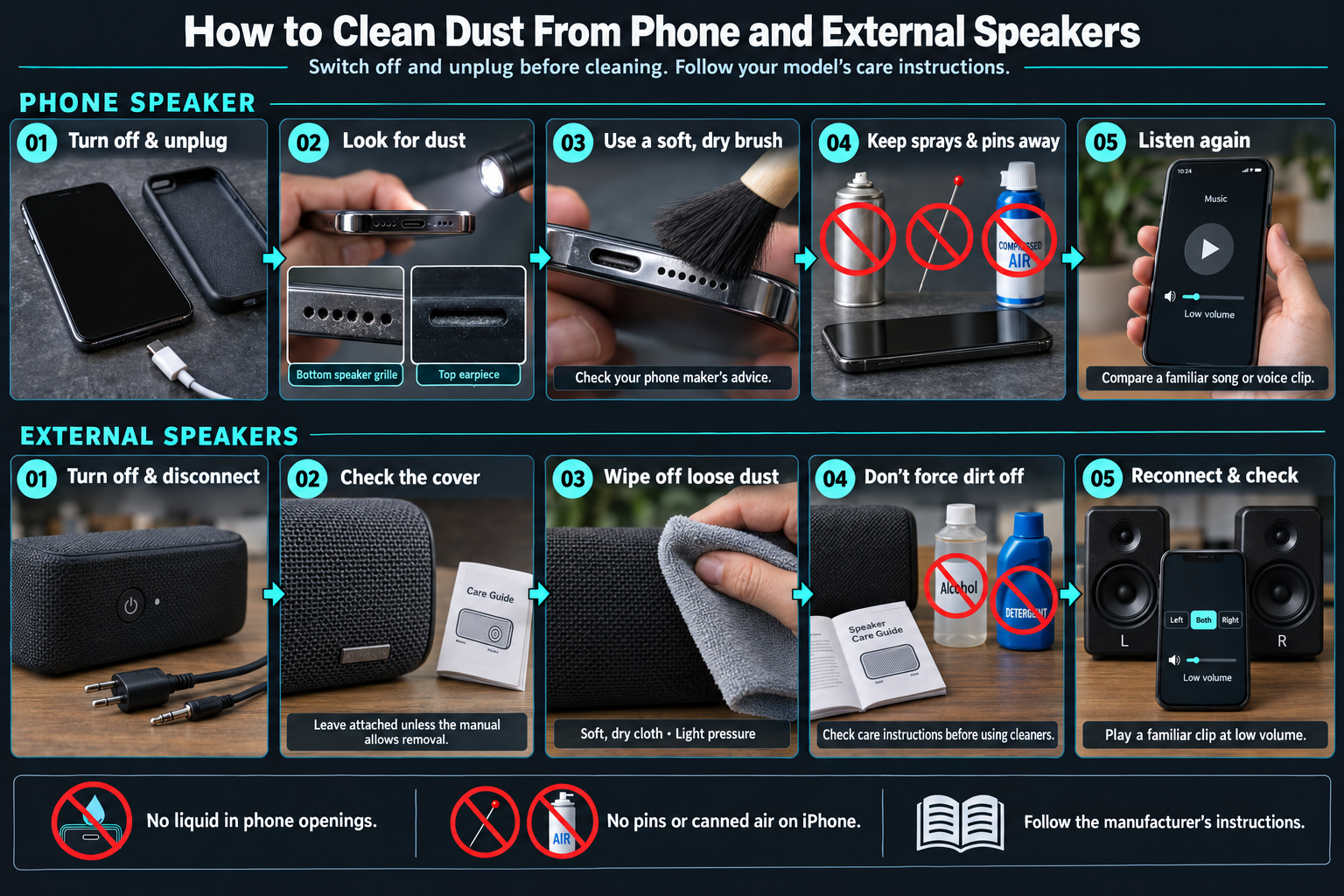
How to Clean Dust From Phone and External Speakers

Dust and pocket lint can build up on speaker grilles and make voices or music sound dull. Here is how to clean both types safely without damaging the speaker.

How to Clean Your Phone Speaker Grille

  • 1

    Switch Off Your Device

    Turn off your phone and unplug any charger before cleaning.

  • 2

    Use a Clean, Dry, Soft-Bristled Brush

    Brush the speaker openings gently from an angle to sweep lint away from the holes rather than pushing it deeper. Apple's cleaning steps

  • 3

    Do Not Poke Sharp Objects

    Pins, needles and paperclips can tear the thin mesh behind the grille or damage the speaker driver.

  • 4

    Keep Liquids and Sprays Away

    Do not use water, cleaning sprays, alcohol or canned air directly on the speaker openings. Canned air can burst the speaker cone or push dust further in.

  • 5

    Wipe With a Dry Microfibre Cloth

    Gently remove loose dust from the phone edges. Samsung's device guide

  • 6

    Play a Short Test Sound

    Turn your phone back on and play a 15-second Low Tone or Tone Sweep at low volume, then check a voice recording to see if speech sounds clearer.

How to Clean External Speaker Grilles

  • 1

    Switch Off and Disconnect

    Turn the speaker off and unplug power cords and audio cables.

  • 2

    Wipe Metal or Plastic Grilles

    Use a clean, dry, lint-free cloth. For stubborn spots, use a slightly damp cloth that is not dripping, wipe gently, and dry right away with a second cloth. Do not let liquid get behind the grille.

  • 3

    Care for Fabric Grilles

    Use a soft brush or a vacuum cleaner on its lowest suction setting with a brush nozzle held a few centimetres from the fabric. Do not press hard or pull loose threads.

  • 4

    Skip Harsh Solvents

    Bleach, acetone, benzene and abrasive pads can ruin fabric, strip protective coatings and discolour speaker housing. Bose's cleaning advice

  • 5

    Let Everything Dry

    Wait until the speaker is completely dry before turning it back on or connecting power cables.

  • 6

    Run Stepped Tone Check

    Play 500, 1,000 and 2,000 Hz tones at low volume to check that both channels sound balanced.

Phone speaker cleaner guide showing gentle brushing and external speaker care with a dry cloth, from switching off to checking the sound.

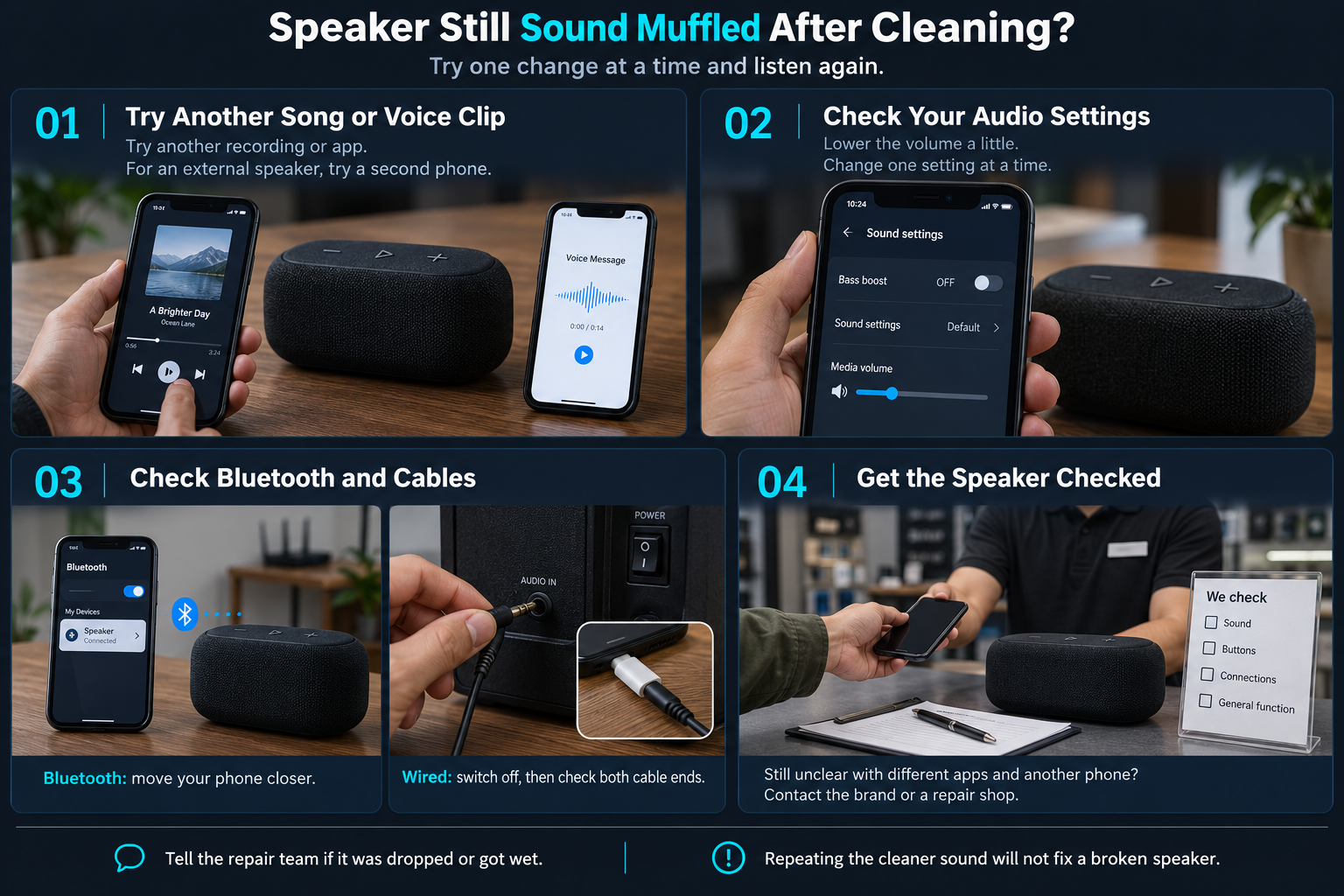
Why Does My Speaker Still Sound Muffled After Cleaning?

If you have brushed away dust and the sound is still muffled or distorted, check if water is trapped inside. If water got into your speaker, use our Water Ejector Tool — it is very helpful for water removal before looking at hardware repairs.

01

Try Another Song or Voice Clip

Some recordings are bass-heavy, poorly mixed or recorded at low quality. Play a clear podcast, a voice note or a song from a different app to see if the problem happens with all audio.

02

Check Your Phone's Audio Settings

An equaliser set with bass boosted and treble turned down can make speech hard to understand. Check whether Mono Audio is switched on in Accessibility settings, and look at the Left/Right balance slider to make sure it is centred.

03

Check Bluetooth and Cable Connections

Weak Bluetooth signals can cause dropouts or crackling. Move your phone closer to the speaker and away from Wi-Fi routers or thick walls.

For a wired speaker, switch it off and check that the audio cable is plugged in properly at both ends. Try another cable of the same type if you have one. If the sound improves, the old cable may be faulty. Sony's cable check

04

When to Get Your Speaker Repaired

If songs and voices still sound unclear in every app you try, get the speaker checked. For an external speaker, connect a second phone first. If it sounds the same, ask the speaker brand's support team or a repair shop for help.

Tell them if the device was dropped or got wet, and explain what you have already tried. Playing the speaker cleaner sound again and again will not fix a broken speaker.

Troubleshooting muffled phone and external speakers after using a speaker cleaner: check recordings, audio settings, connections and repair options.

About the WaterEject.site Team

Creators & Audio Tool Developers

WaterEject.site is run by its owner and one other team member. We build browser-based sound tools and write guides for phone and external speakers. We have tested the tool on a mobile phone.

Our guides explain how to use the sound controls, clean visible dust and check common speaker problems. The tool cannot confirm that a speaker is clean or repair damaged parts.

Frequently Asked Questions

Common answers about speaker sound testing and speaker maintenance.

Yes. Open this page in your browser, choose a sound mode and press Play. You can use the controls on the page without downloading an app.

Yes. Connect the Bluetooth speaker to your phone and select it as the audio output before pressing Play. The sound will play through the connected speaker. This does not mean every speaker can be cleaned with sound.

Your speaker may play both channels together as mono sound. Your phone's audio settings can also combine them. Left and Right work separately only when your device and speaker setup keep the two stereo channels separate.

Start with 15 seconds at low volume, then listen to a familiar song or voice clip. You can choose 30 or 60 seconds, but a longer session does not guarantee better cleaning. Stop if the sound feels too loud or starts crackling.